8 · MaintNode devices and automatic data#
Routes cover the readings a person takes. MaintNode covers the rest — the hardware that measures your equipment continuously and sends the readings into Mechbase on its own, with nobody in the loop. This chapter explains what MaintNode is, how you claim a device and connect its inputs to measurement points, and how to tell it’s healthy.
What MaintNode is#
A MaintNode is a small edge computer installed at your site, wired to the sensors on your equipment. It measures on a schedule, keeps every reading on its own storage, and uploads them to Mechbase over a secure internet connection — so a network outage never loses data; the readings simply catch up when the link returns. Those readings land on the matching measurement points, where they trend, get checked against alarm limits, and drive asset health exactly like any other reading.
A MaintNode reads three kinds of input:
Built-in inputs — sixteen analog channels (two stacked boards of eight) for accelerometers, 0–10 V and 4–20 mA transmitters, and tachometers.
USB DAQ — an external USB-201 acquisition module.
Modbus — registers and coils read from a PLC, drive, or gateway over TCP or serial (RTU).
Three ideas make the rest of this chapter make sense:
A device has channels. Each input is a channel, numbered from 0.
Channels are grouped. An acquisition group is a set of channels on one device that are measured together, on the same hardware and the same schedule — for example “Compressor vibration: built-in inputs, every 20 minutes, 4096 samples at 4096 Hz”.
A point is fed by a channel. You connect the two on the point’s Sources (Working with assets) — this point is fed by channel 0 of that group on that device.
Screenshot needed (hardware): a photo of a MaintNode device installed on or near equipment, with its label visible.
The MaintNode Devices page#
Open MaintNode Devices from the menu, under Setup. It lists every device claimed by the current installation.
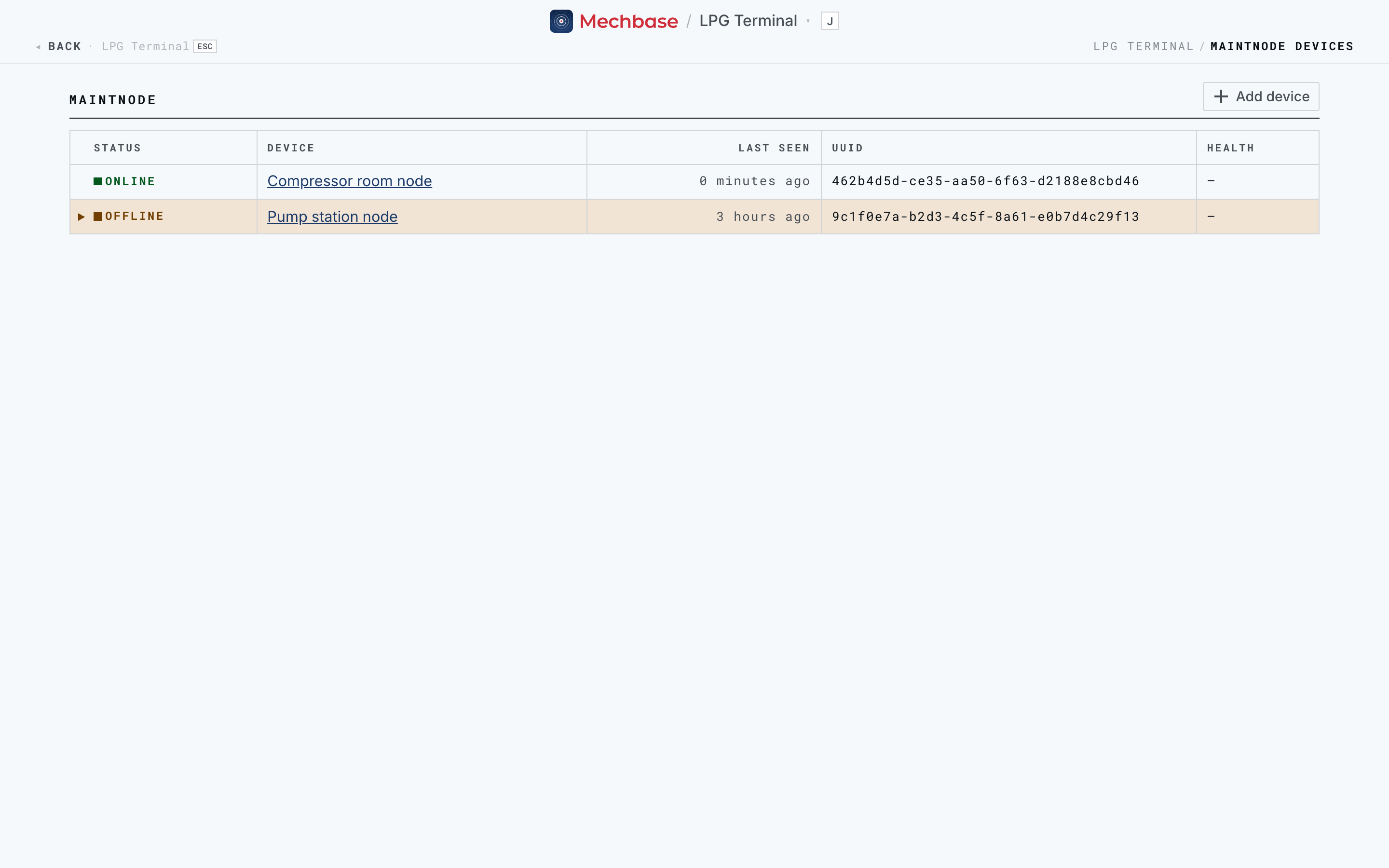
For each device you see:
Status — Online if it has checked in within the last five minutes, otherwise Offline.
Device — its name; click it to open the device page.
Last seen — when it last checked in.
UUID — the device’s unique identity.
Health — a warning chip if the device reports high CPU, memory (MEM), DISK usage, or TEMPerature.
A site with no devices yet shows “No devices linked” and an Add device button.
Claiming a device#
Every MaintNode carries a label with a QR code, its short ID, and the credentials for its setup hotspot. Claiming registers the device to your installation; Mechbase then sends it the credentials it needs to upload readings.
The quickest way is from the device itself: scan the QR code on its label with your phone. It opens the device’s Device setup page in Mechbase (sign in if asked).
From a desk instead, open MaintNode Devices, click Add device, type the device’s UUID (it’s on the label), and click Go to device.
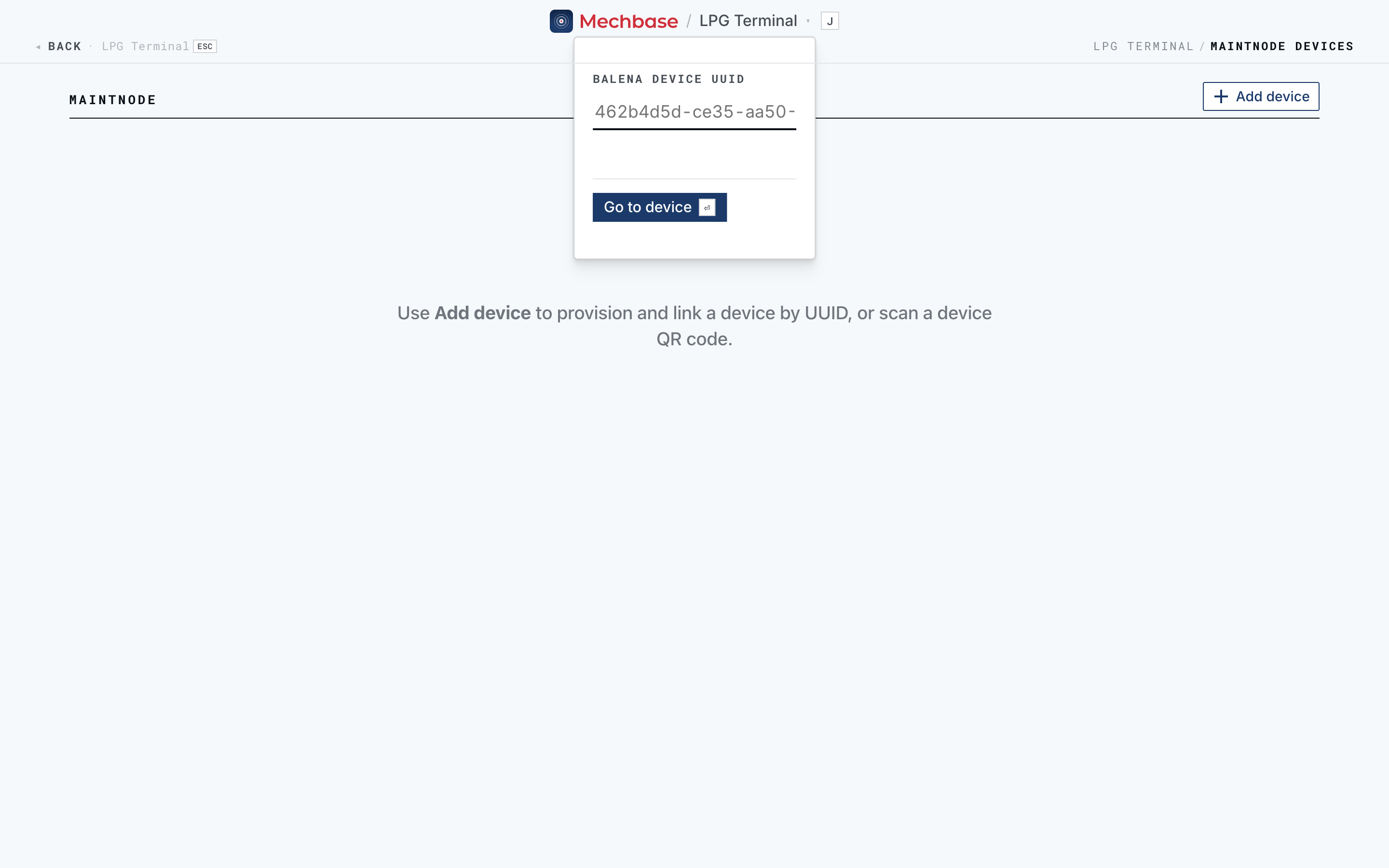
On the Device setup page — “Choose where this device belongs”:
Pick the Installation (if you belong to more than one).
Give it a Device name people will recognise — “Compressor room node”.
Click Claim device.
You’re returned to the devices list with “Compressor room node is now registered to LPG Terminal”. Once claimed, the same page shows the device’s Online / Offline status, lets you Rename it, and has Send credentials again — use that if a newly claimed device doesn’t come online.
If a device is already registered to another installation, Mechbase says so and shows nothing more about it. A device it doesn’t recognise at all reads “This device isn’t registered with Arpedon yet” — contact Arpedon.
Note: Any member of the site can claim and connect devices, but in practice it’s a commissioning job. Day-to-day users don’t need this page — they just see the readings it produces.
Getting it on the network#
A MaintNode needs a network connection to upload. If it can’t reach one on its own (no DHCP on its Ethernet port, or Wi-Fi only), use its built-in Network setup page:
On your phone or laptop, join the device’s Wi-Fi hotspot — MaintNode-xxxxxxxx, with the password printed on the label.
Browse to http://10.42.0.1.
Set up Ethernet or join a WiFi network, review the Change, and Apply it. Changes that would cut you off can be staged for the next reboot instead; the History tab shows what was changed and when.
Once it’s online and claimed, the device’s status in Mechbase turns Online.
Screenshot needed (MaintNode): the Network setup page at
10.42.0.1.
Connecting a channel to a point#
With the device claimed and wired, connect each channel to the measurement point it
measures. Open the point, click Edit (E), scroll to Sources, and click
Add source.
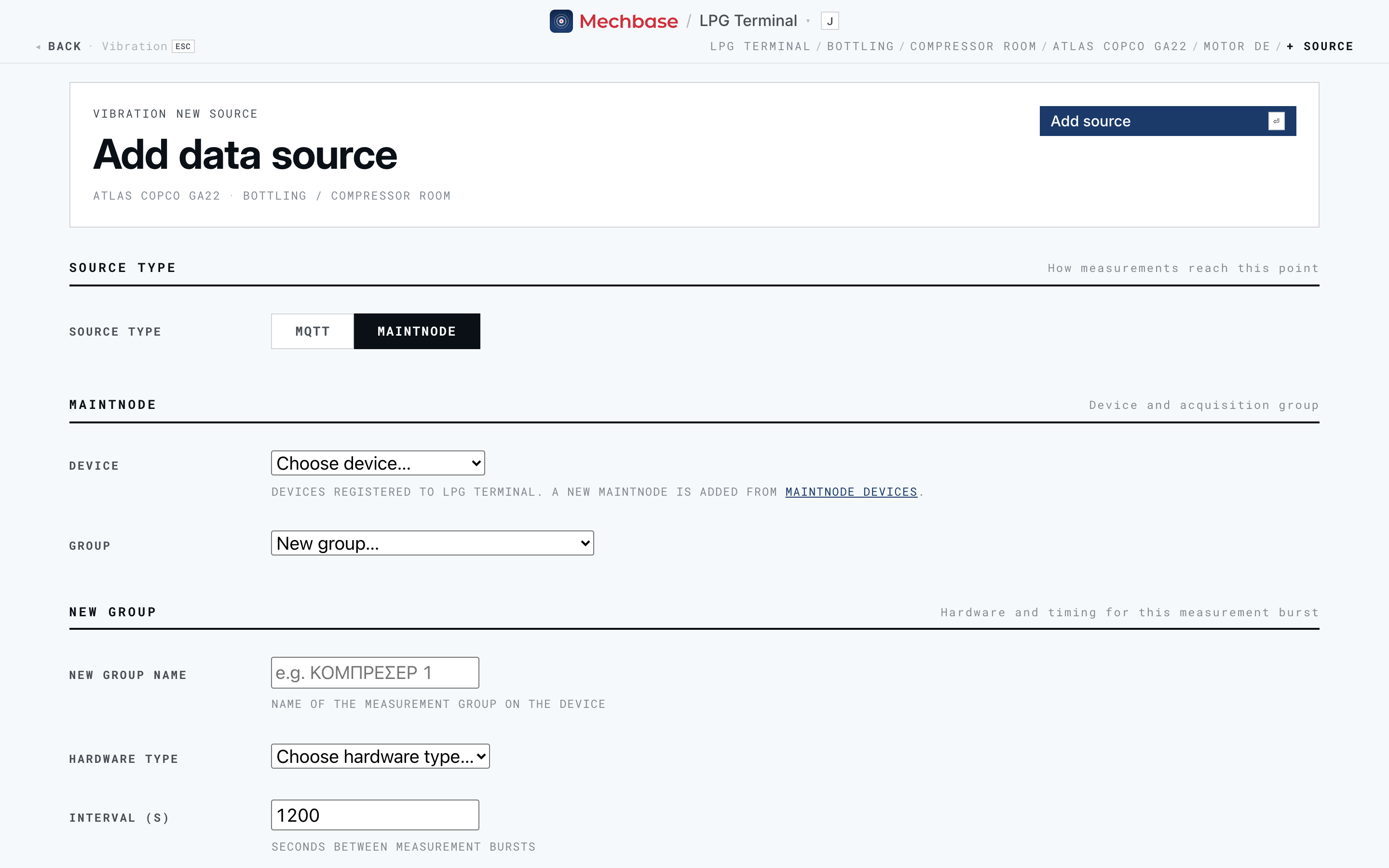
Source type — choose MaintNode (MQTT is for your own devices; see the MQTT cookbook).
Device — one of the devices claimed by this installation.
Group — an existing acquisition group on that device, or New group…. A new group needs:
a New group name;
the Hardware type — Built-in inputs, USB DAQ (USB-201) (with its hardware ID and address), or Modbus;
the Interval (s) between measurement bursts (20 minutes by default), the Sample rate (Hz), and the Samples per burst.
Channel — channel 0–15 on built-in inputs (0–7 is the first board, 8–15 the second).
Sensor type, and its settings:
Accelerometer — Sensitivity (mV/g) (100 by default) and Offset.
0-10 V, 4-20 mA, 0-20 mA — the Min value and Max value the signal range represents, and an optional Aggregation (mean, RMS, max, min) over the burst.
Tachometer (RPM) — a once-per-revolution pulse.
For Modbus: Register value or Digital.
Click Add source.
Modbus groups also need the connection — TCP (the IP address and TCP port of the PLC or gateway, as the MaintNode sees it on the plant network) or Serial (RTU) (port, baud rate, parity, stop and data bits) — and the Unit ID. Each Modbus source then names its Register address, Register type (holding, input, coil, or discrete input), Data type (16- or 32-bit integer, or float), Word order, and an optional Scale and Offset. Digital channels can be normally open or normally closed, and are recorded as on/off periods — ideal for a run signal or a fault contact on a State point.
Why a tachometer is worth wiring. Put a tachometer in the same group as the accelerometers on a machine and every vibration reading carries the shaft’s once-per-turn pulses. Mechbase then measures the actual shaft speed and the 1X and 2X amplitude and phase of each reading (Measurements, trends, and alarms), and the tachometer becomes the authority on whether the machine is running.
To change a source later, click its pencil on the point’s edit page. A source keeps its type, device, and group — to move it, remove it and add a new one. Edit group settings changes the group’s name and timing for every channel in it. Remove source stops new readings arriving from it; readings already recorded stay on the point.
From device to trend#
Once a device is claimed, online, and its channels connected, its data reaches Mechbase like this:
On each group’s schedule, the MaintNode measures its channels in a burst.
It stores the readings on the device, then uploads them to Mechbase — immediately when it’s online, or as soon as it’s back if not.
Each reading lands on the measurement point that channel is connected to.
From there it’s an ordinary reading: it joins the trend, is scored against the point’s alarm rule, and updates the asset’s state (Measurements, trends, and alarms).
So the join between hardware and Mechbase is one line on a point: this point is fed by that device’s channel. After that, everything you learned about trends and alarms applies automatically.
Is my device healthy?#
Because the readings only keep coming while the device is working, it’s worth knowing how to check one:
On MaintNode Devices, a healthy device reads Online, with a recent Last seen and no Health warnings.
Mechbase watches every connected point. If a point that’s normally fed automatically misses three scheduled readings in a row, Mechbase flags it: the point page shows No data and since when, the asset’s activity records “No readings from … since …”, and the asset shows up as Silent on Needs attention. When readings come back, the activity says “Readings resumed”.
If a device goes Offline, check its power and network first. If it’s online but a single point is silent, check the sensor and its wiring, and that the point’s Sources still names the right channel.
Note: For the wiring, mounting, and sensor specifics, follow the hardware’s own user manual — it’s the authority on sensor models, ranges, and installation.