1 · Getting started#
This chapter takes you from a browser and a set of credentials to feeling at home in Mechbase: signing in, opening the site you want, reading the home page, moving around quickly, and setting your personal preferences — including which alerts reach your inbox.
Signing in#
Mechbase web runs at your organisation’s Mechbase address — usually
app.mechbase.io. Open it in any modern browser. If you’re not already signed
in, Mechbase takes you to the sign-in screen.
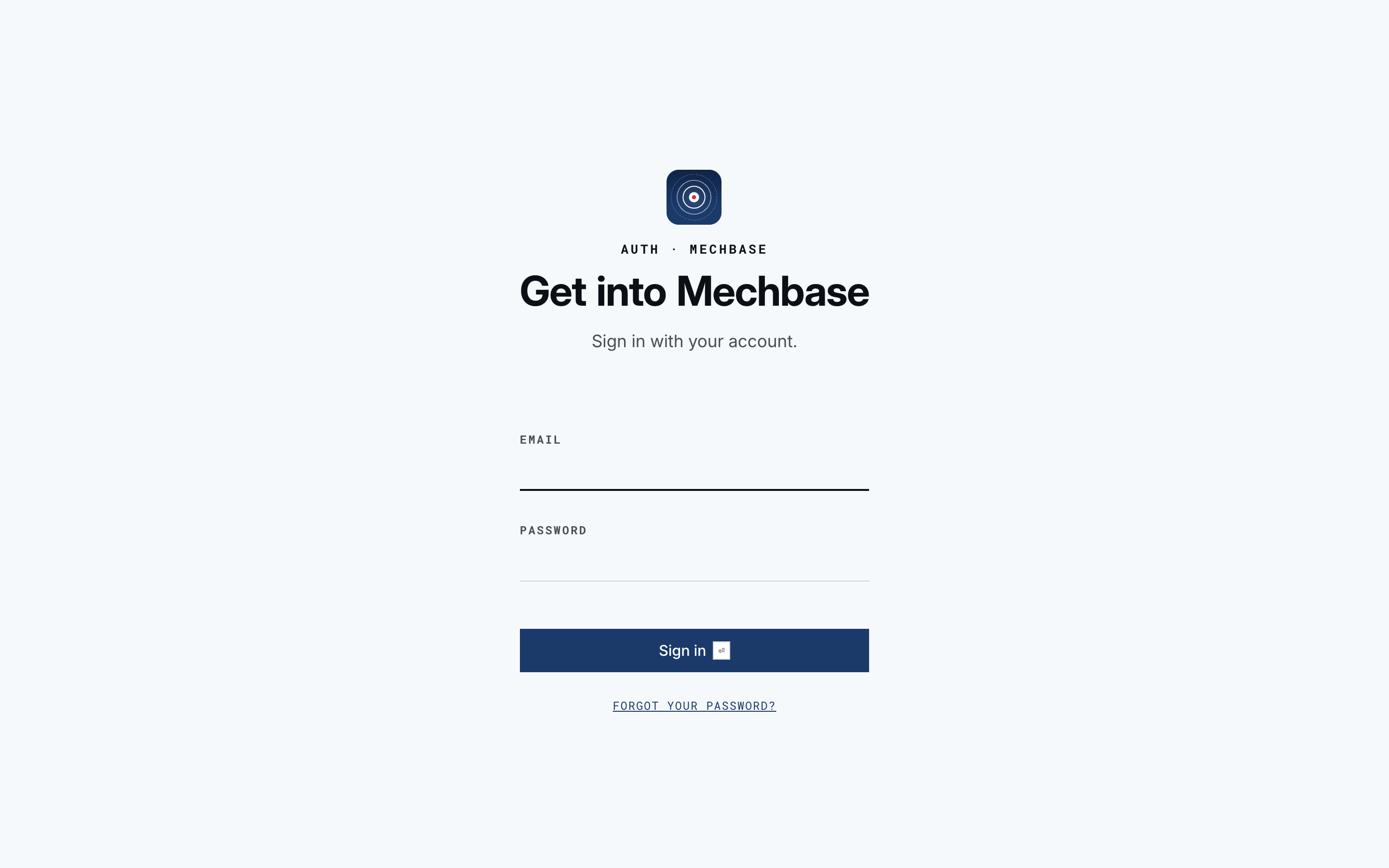
To sign in:
Type your Email — the work address your account was created with.
Type your Password.
Click Sign in, or just press Enter.
That’s it — you go straight to the installation picker below. Mechbase keeps you signed in on that browser until you sign out.
Signing in with Microsoft. If your company uses Microsoft 365 and has single sign-on set up with Mechbase, a Sign in with Microsoft button appears under the form as soon as you type an email on your company’s domain. Click it and sign in with your usual work account instead of a Mechbase password. You still need a Mechbase account with that email — single sign-on proves who you are, it doesn’t create an account or grant access on its own. If you see “Your Microsoft account isn’t set up for Mechbase”, ask your Mechbase contact to add you.
Forgot your password? Click Forgot your password? under the form, enter your email, and click Send reset link. Mechbase emails you a link (subject “Reset your Mechbase password”); open it, choose a New password, confirm it, and click Set password. If the link has expired, request a new one from the same page.
Note: Accounts, and the sites each person can open, are managed centrally by an administrator — see Setting up and managing your account. For everyone else the effect is simple: you only ever see the sites you belong to.
Choosing which installation to open#
An installation is a single physical site Mechbase monitors — a plant, a terminal, a factory, or a vessel. After you sign in, Mechbase shows you every installation your account can open.
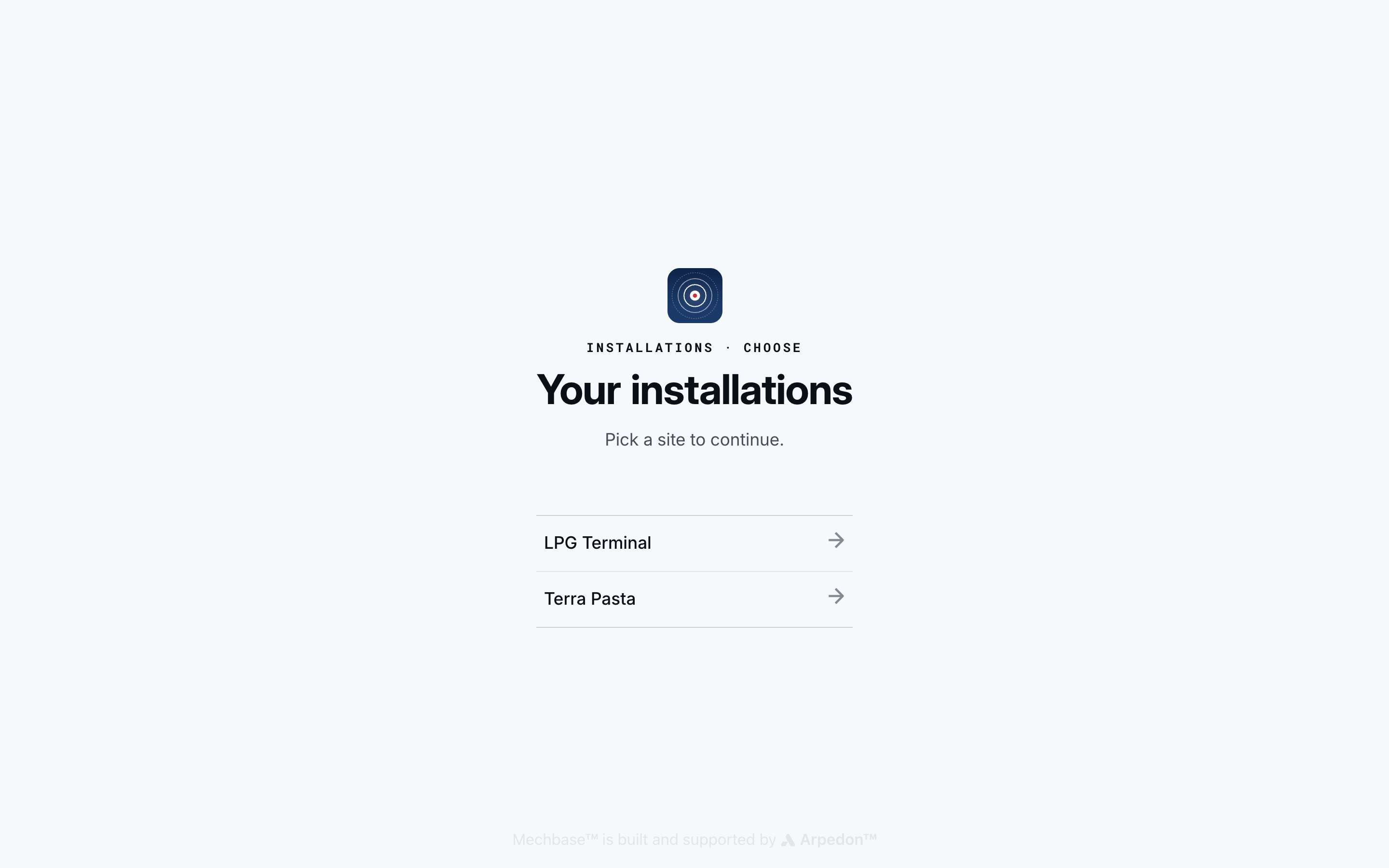
Click a site’s name, or use the arrow keys and Enter, to go in. The demo data used in this manual has two: LPG Terminal (a storage and transfer terminal) and Terra Pasta (a food-processing factory). This manual uses LPG Terminal throughout.
Once you pick a site, its home page opens at an address like
app.mechbase.io/2012/, where 2012 is the installation number — bookmark it to
jump straight back next time.
Note: If your account can only open one site, Mechbase skips this screen and takes you straight to its home page. If you don’t belong to any site yet, the picker says so — ask your administrator to add you.
A tour of the home page#
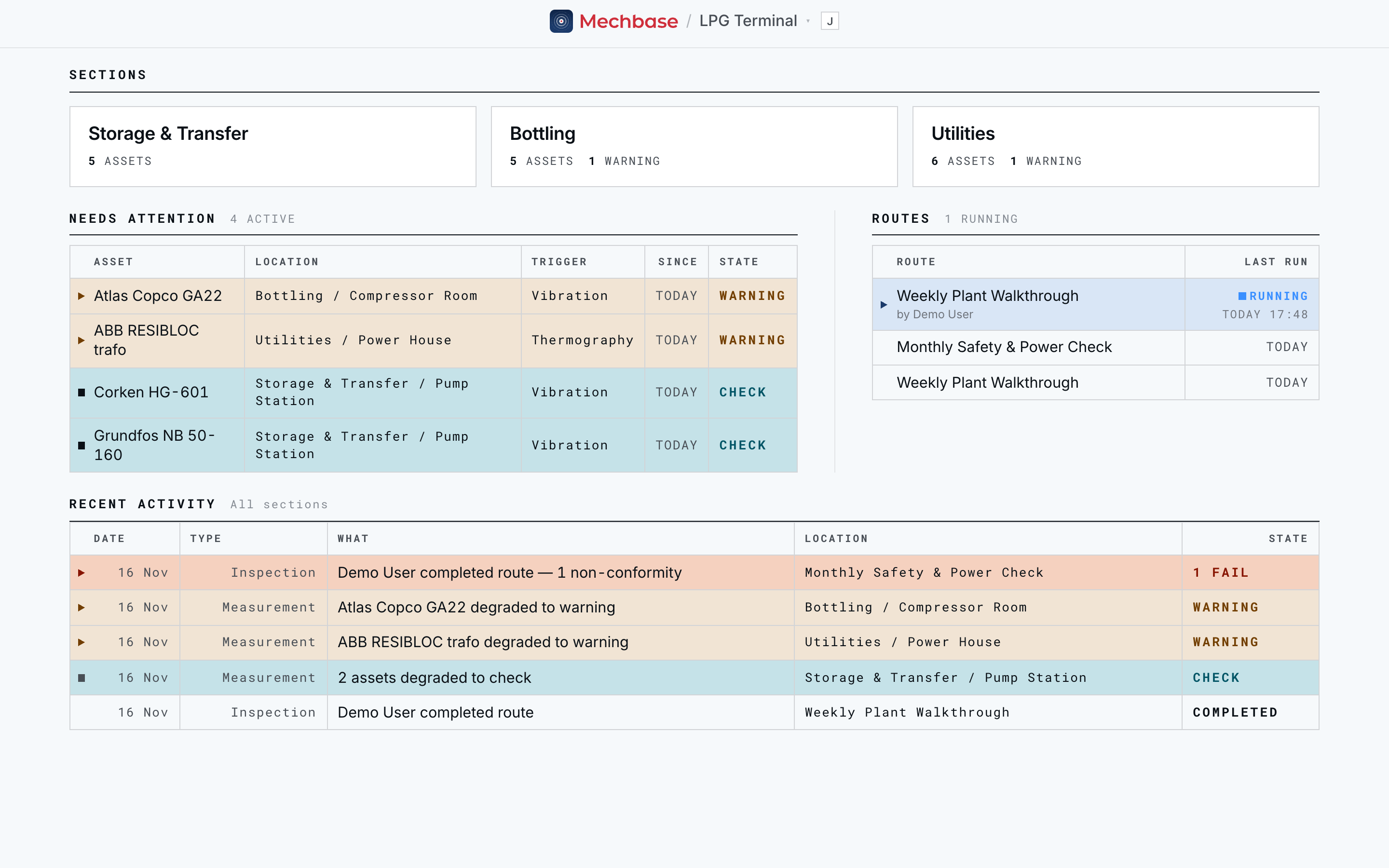
The home page is your starting point for a site. It’s built around one question — right now, what needs my attention, and where do I go next? — and it’s the same screen whether you’re a technician starting a shift or a director checking in.
The top bar#
The bar across the top stays with you on every page. It’s a single button: the
Mechbase logo, the name of the site you’re in (/ LPG Terminal ▾), and a J
key cap. Click anywhere on it — or press J — to open the menu (see
Getting around).
On any page below the home page you’ll also see:
Back on the left, with the place it goes back to (Back · Compressor Room) and an
ESCkey cap — pressEscto use it.A breadcrumb on the right showing where you are (
LPG Terminal / Bottling / Compressor Room / Atlas Copco GA22). Each part is a link, so the site name always takes you home.
Sections#
The page opens with one card per section — the major areas of the site. Each card shows the section’s name and how many assets it holds, plus how many are in warning or critical (counts of zero are left out). Click a card to open the section (Finding your way around).
Needs attention#
Needs attention is your triage list — every asset that isn’t healthy, most urgent first. The heading tells you how many are active, and how many have gone silent (stopped reporting).
Column |
What it tells you |
|---|---|
Asset |
The equipment name — click the row to open the asset. |
Location |
Where it is, as |
Trigger |
What raised it — the measurement point that’s out of limits (Motor DE), the inspection check that failed (Oil level and quality), or No reading: … for a silent asset. |
Since |
How long it’s been in this state. |
State |
Its health — Check, Warning, Critical — or Silent. |
The panel shows the top six; if more need attention, +N more opens the full list (Staying on top of what needs attention). When everything is healthy it simply says “No active alerts — All equipment is operating normally.”
Routes#
Beside it, Routes lists inspection rounds that are in progress or recently done. Walks happening right now come first, with a Running marker, who’s walking it, and when they started — click one to join or resume it. Below them, each route’s latest completed run, linking to its report (Inspections and routes). The panel only appears once a route has been run.
Recent activity#
At the bottom, Recent activity is the site’s running log, newest first, as a table: Date, Type, What, Location, and State. There are four types of entry:
Measurement — automatic state changes from readings, in plain words: “Atlas Copco GA22 degraded to warning”. When several assets change together they’re grouped: “2 assets degraded to check”.
Inspection — routes people completed: “Demo User completed route — 1 non-conformity”.
Note — comments people left on an asset.
Finding — an analyst’s recorded diagnosis on a reading (Measurements, trends, and alarms).
Click any row to open what’s behind it. For a director, this one feed is a ready-made audit trail of who did what, and how each asset has trended.
Tip: Times everywhere in Mechbase are shown in your own time zone, and recent dates read naturally — Today, Yesterday, 3 days ago, 2 weeks ago.
Getting around: menu, shortcuts, and search#
Mechbase is built to be driven from the keyboard. Rather than hunting through pages, you open the menu and jump straight where you need to go.
The menu#
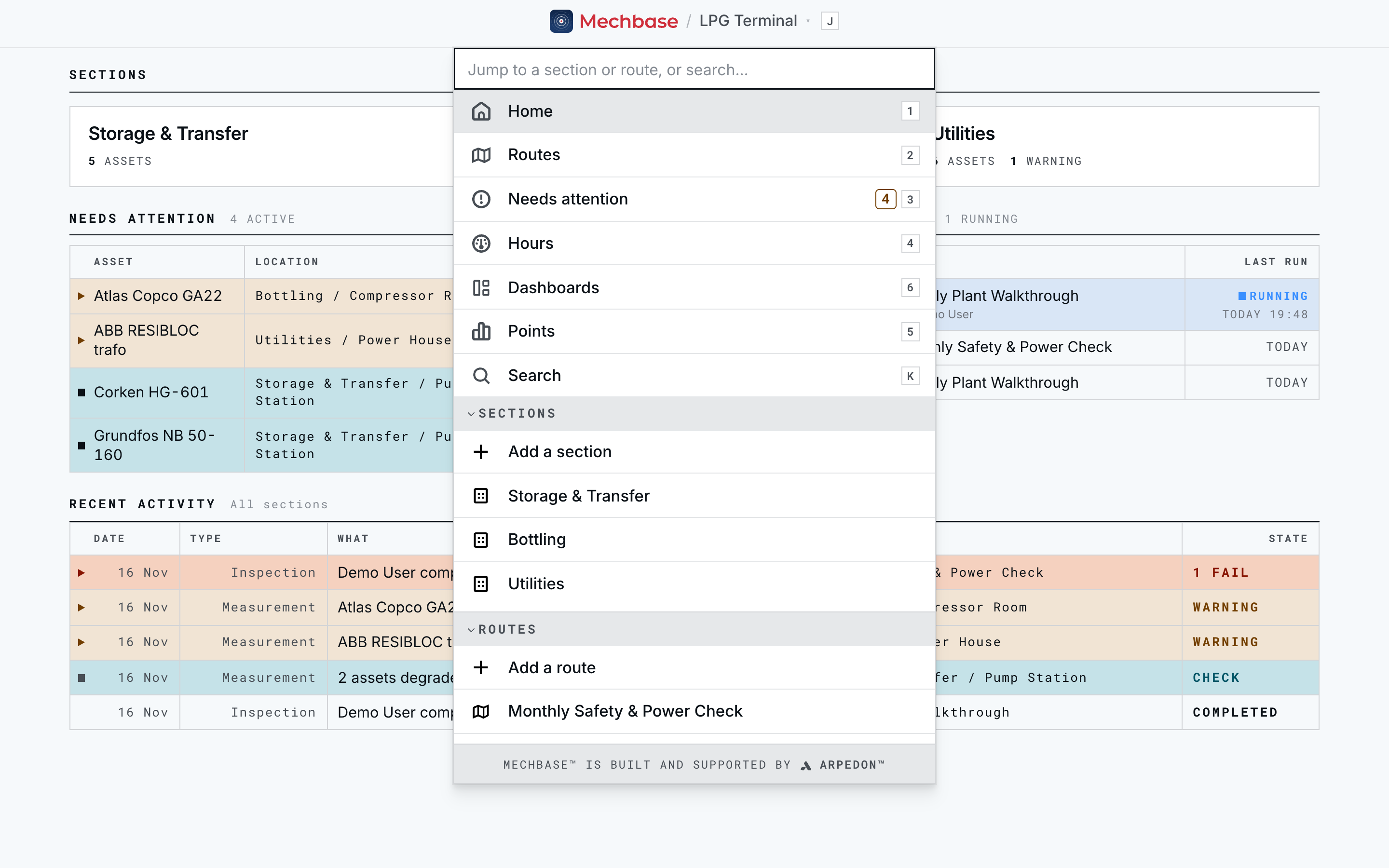
Click the top bar — or press J (or ⌘J / Ctrl+J) — to open it. You get a
filter box up top and every destination below.
From top to bottom:
A filter box — “Jump to a section or route, or search…”. Start typing and the list narrows; the last row, Search for “…”, runs a full search for what you typed.
Home (
1), Routes (2), Needs attention (3, with a count of active items), Hours (4), Points (5), Dashboards (6), and Search (K).Sections — Add a section, plus a link to each one.
Routes — Add a route, plus a link to each one.
Installations — every site you can open, with the current one ticked (only shown if you have more than one).
Setup — MaintNode Devices, Bearings, and Zone types & imports.
Account — My Profile and Sign out.
Groups fold away with the small arrow beside their name, and Mechbase remembers which you’ve folded. Use the arrow keys and Enter to move without the mouse.
Keyboard shortcuts#
The single-key shortcuts work from anywhere (except while you’re typing in a field or a dialog is open):
Key |
Action |
|---|---|
|
Open or close the menu |
|
Home |
|
Routes |
|
Needs attention |
|
Hours |
|
Points |
|
Dashboards |
|
Search |
|
Back — up to the page above (or out of the field you’re in) |
Pages add their own shortcuts, shown as small key caps on their buttons — E for
Edit, P for a new point, R to start a route, and so on. The full list is in the
Appendices.
Searching the whole site#
The filter box in the menu is for going to a place you know. When you want to
find something by name or content, use Search (press K).
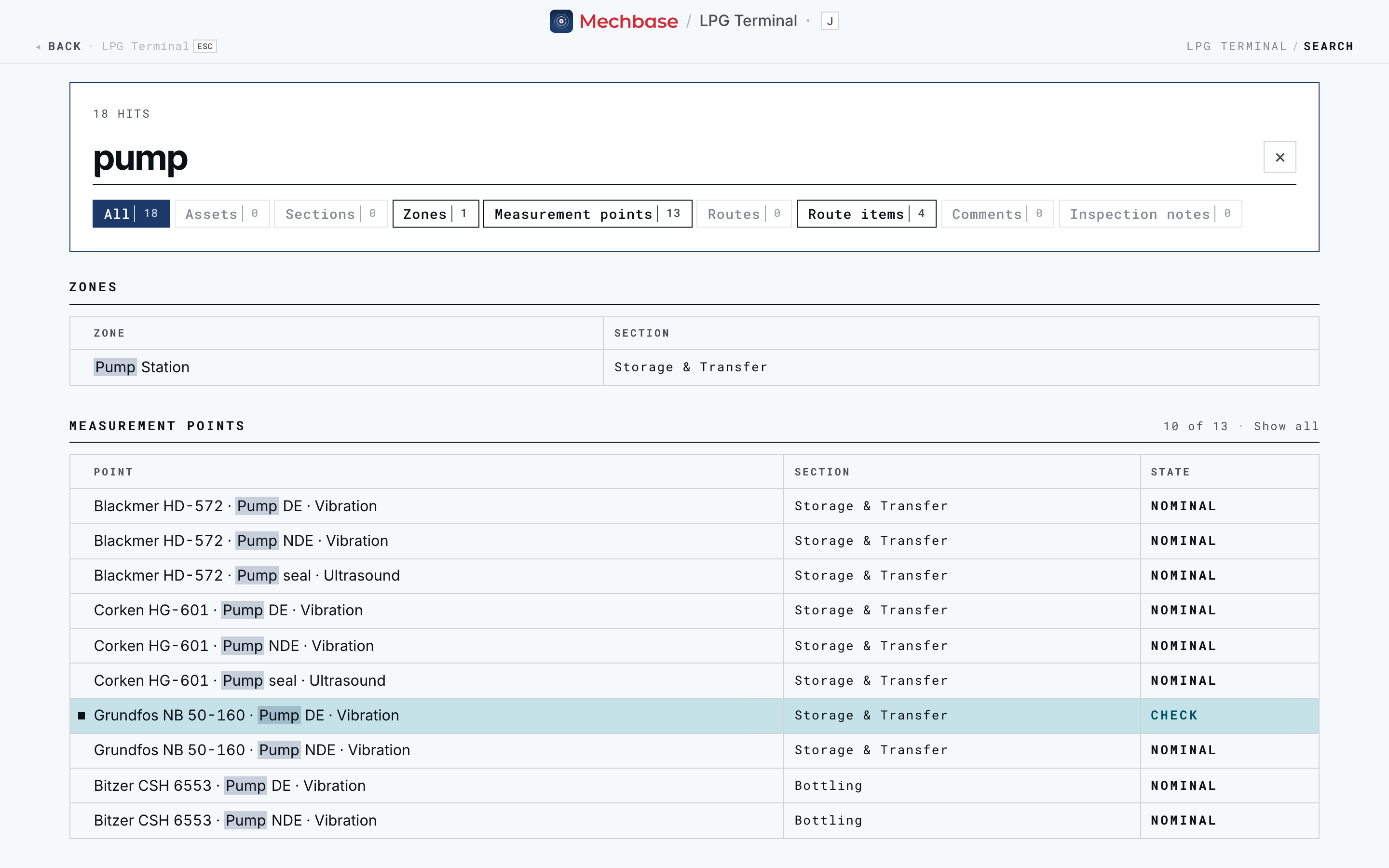
Type what you’re looking for and press Enter. Search covers the whole installation — assets, sections, zones, measurement points, routes, route checks, comments, and inspection notes — and highlights the match. A bar of categories across the top shows how many hits each has; click one (Zones, Measurement points, …) to see only those. Long groups show the first few with a Show all link.
It’s the fastest way to reach a specific pump, panel, or note when you only half-remember what it’s called. Measurement points are found by their location too, so “pump seal” finds every pump seal on the site.
Switching between installations#
If your account covers several sites, you can move between them without signing out:
Open the menu (
J).Under Installations, click the site you want. The current one has a tick.
You can also go back to the picker at app.mechbase.io/installation/select/. Each
site keeps its own sections, assets, routes, and dashboards, so switching changes
everything below the top bar.
Your name, email, and units#
Open My Profile from the menu (Account → My Profile). This is where you control how Mechbase looks for you — it doesn’t change anything for anyone else.
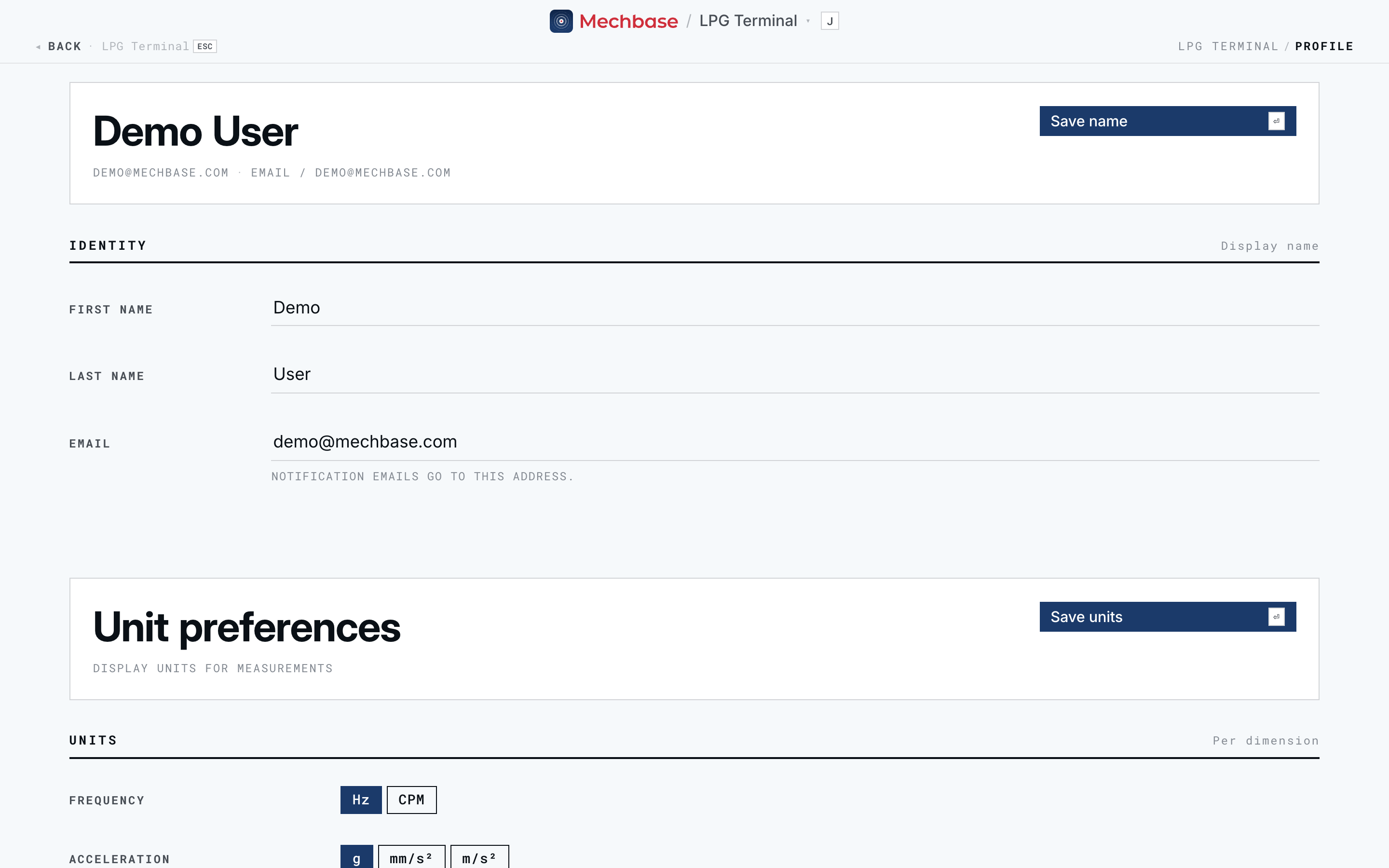
Your name and email. Your first and last name make up your display name — the one that shows on inspections you complete (“Demo User completed route”). Your Email is both your sign-in and where notification emails go. Edit any of them and click Save name.
Unit preferences. This is the setting engineers and technicians care about most. Mechbase stores every measurement in a standard unit but shows it in the unit you choose here, per quantity:
Quantity |
Choices |
|---|---|
Frequency |
|
Acceleration |
|
Velocity |
|
Temperature |
|
Pressure |
|
Pick a unit for each and click Save units. From then on, every trend, reading,
report, and alarm limit across the app appears in your units — so an analyst who
thinks in CPM and in/s and a process engineer who thinks in Hz and mm/s can
each read the same data in their own terms. Each sheet confirms with
Saved · HH:MM.
Choosing your email notifications#
Further down the same page, Email notifications decides which alerts and reports Mechbase emails to you. Every person sets their own, per installation.
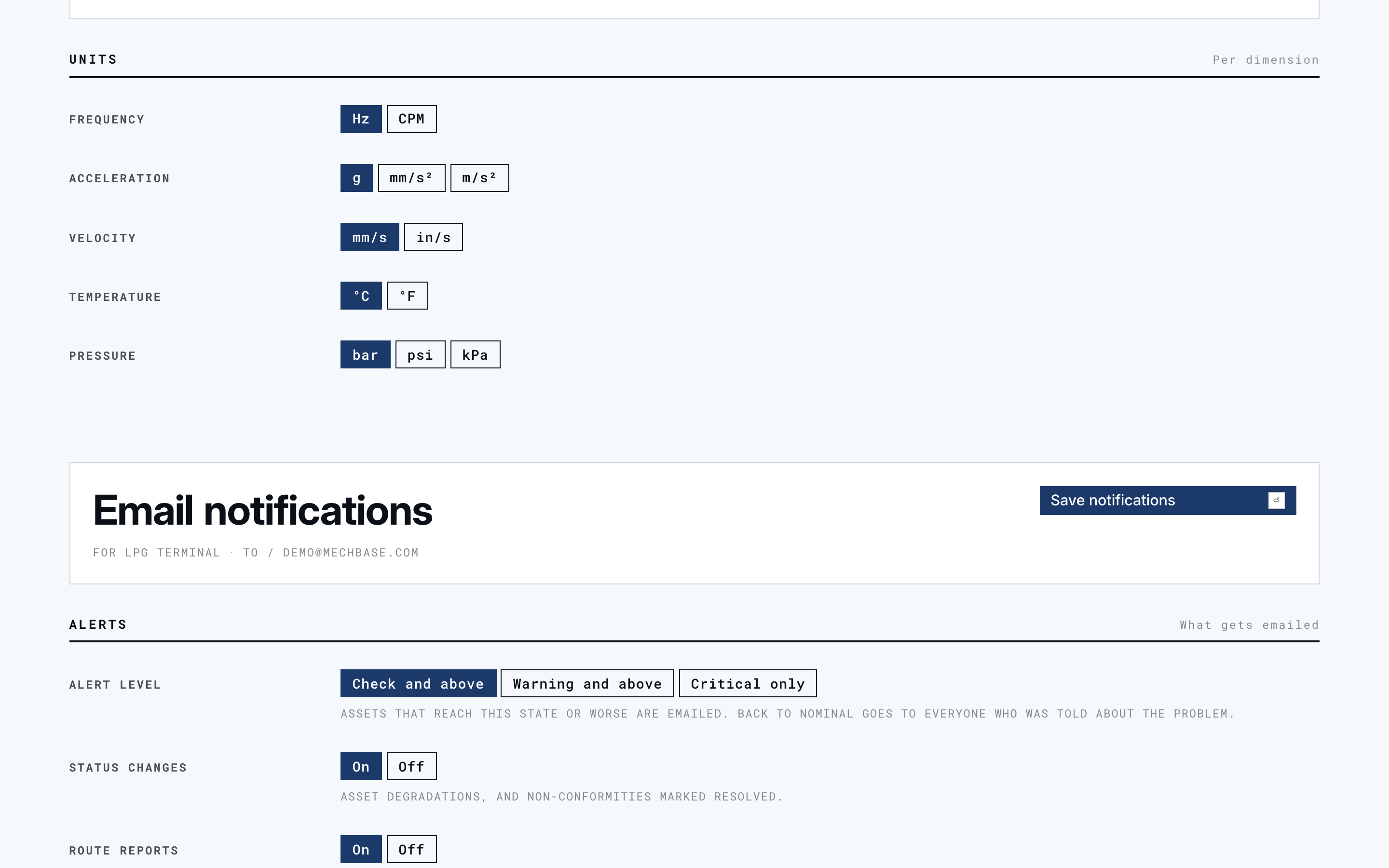
Alert level — Check and above, Warning and above, or Critical only. You’re emailed when an asset reaches that state or worse. When it goes back to normal, everyone who was told about the problem hears that too.
Status changes — On / Off: asset degradations, and non-conformities marked resolved.
Route reports — On / Off: a summary when a route finishes with open non-conformities.
Exports — On / Off: a download link when an analytics export you requested is ready.
All email — Active / Paused. Pausing stops every Mechbase notification email to you, across all installations.
Click Save notifications to keep your choices. Send test email sends a sample to your own address straight away, so you can check it arrives (and isn’t caught by a spam filter).
Every notification email has Manage notifications and Unsubscribe links at the bottom. Unsubscribing pauses all Mechbase email for you; you can switch it back on here at any time.
Tip: Out of the box everything is on at Check and above. A supervisor who only wants to hear about real problems might choose Warning and above; a director might choose Critical only.
Signing out#
To sign out, open the menu (J) and click Account → Sign out, or use the
Sign out button at the bottom of your profile. Mechbase ends your session on
that browser and returns you to the sign-in screen.
Heads-up: On a shared workstation, always sign out at the end of a shift — Mechbase otherwise keeps you signed in on that browser.