5 · Inspections and routes#
Routes let your team run repeatable inspection rounds and turn what they find into tracked issues — the work that sensors can’t do for you: a visual check, a manual reading, a safety test. This chapter covers the whole cycle: what a route is, how to build one, how to run it (on the web here, on the phone in Mechbase on your phone (iOS & Android)), and how findings turn into non-conformities and a report.
What a route is#
A route is a defined inspection round — a named list of things to check, in a sensible walking order. It’s made of two building blocks:
Stops — the places you visit, in order: a zone (Power House) or a specific asset (Caterpillar C9 genset).
Checks — the individual items you complete at each stop.
Every check has a type, which decides what you record:
Pass / Fail — a yes/no judgement, like “fire extinguisher in date”.
Numerical — a number you read off a gauge, like a room temperature, in the unit you set on the check.
Multi-check — several pass/fail steps bundled into one check (for example, a panel’s emergency stop, relays, interlocks, and fan).
Measurement — a reading taken on one of the asset’s measurement points (a vibration, a temperature, a thermal image), which flows into that point’s trend just like an automatic reading. A thermography check is a Measurement check on a thermography point.
Each time someone walks a route, they create a run (an execution). The route itself is the template; the runs are the history. A route has at most one run in progress at a time — if a colleague has already started today’s round, starting it again joins their run rather than creating a second one.
Seeing your routes#
Open Routes from the menu, or by pressing 2.
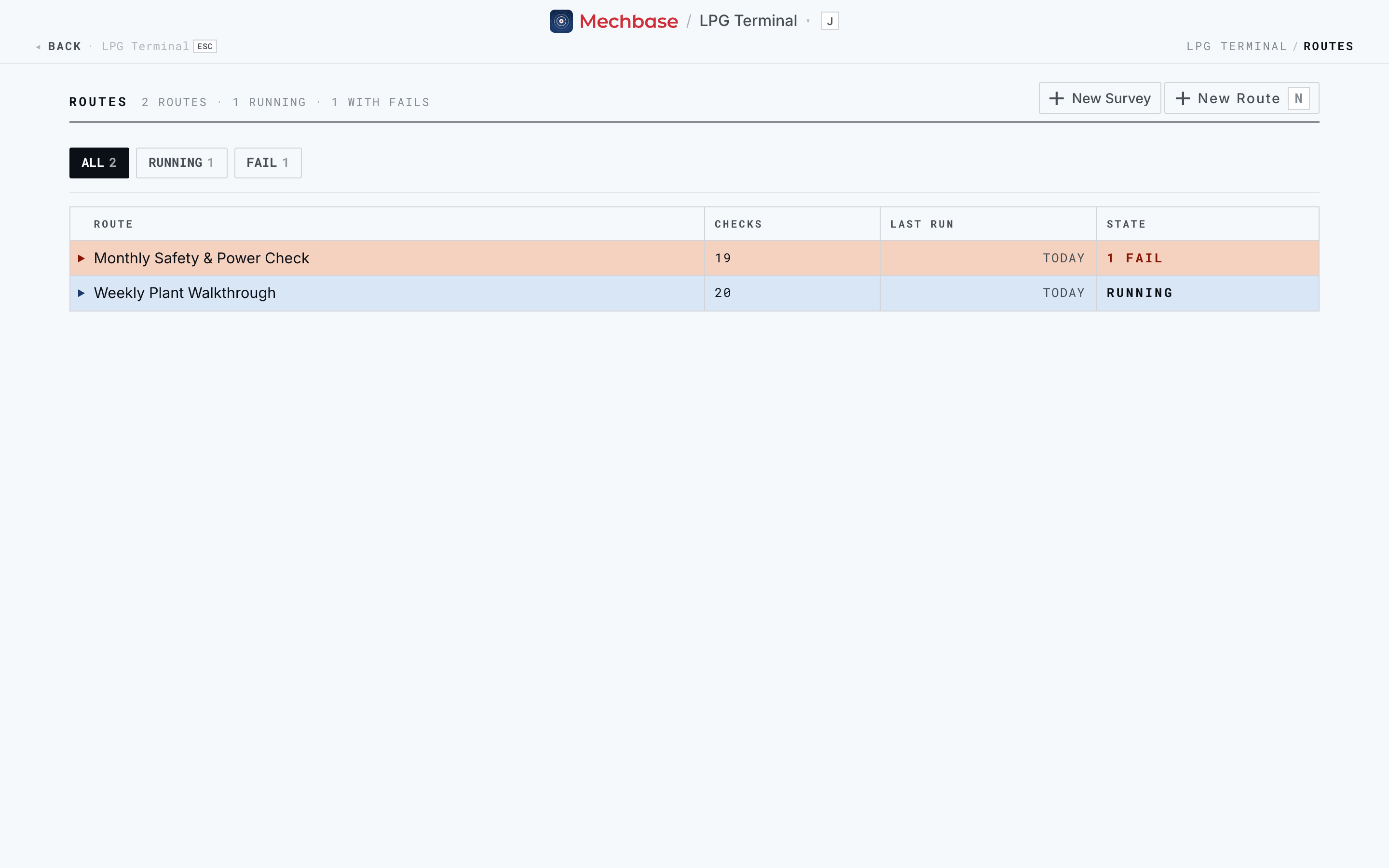
You get every route for the site, with its number of checks, when it last ran, and
its state. The filter pills — All, Running, Fail, Completed, Never
run — each show a count, so you can see at a glance what’s in progress and what
found problems. Start a new route with New Route (N), or a survey with New
Survey (Surveys). Click a route to open
it.
A route’s own page is its launchpad and its latest result:
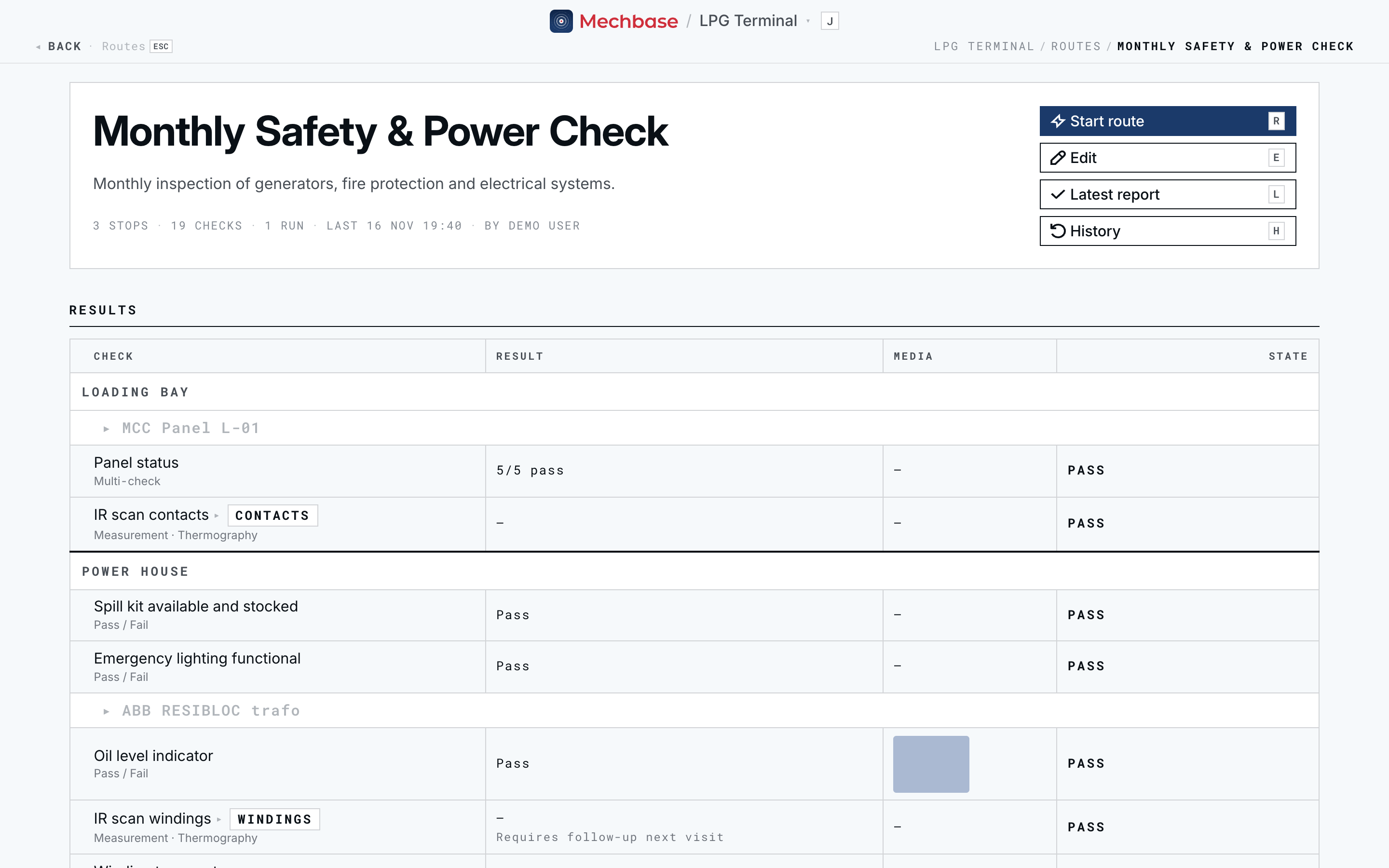
At the top are its description and totals — stops, checks, runs, when it last ran and by whom — and four actions:
Start route (
R) — begin a run. If one is already in progress, the button reads Resume route with a Running marker, and takes you into it.Edit (
E) — change the checklist.Latest report (
L) — open the most recent run’s report.History (
H) — every past run.
Below, once the route has been run, you see the Results of its latest run, grouped by stop and then by asset, so the page answers “how did it go last time?” straight away. A route that has never been run shows its Checklist instead.
Building a route#
Create a route with New Route (N). Give it a Route name and an optional
description, then click Create route.
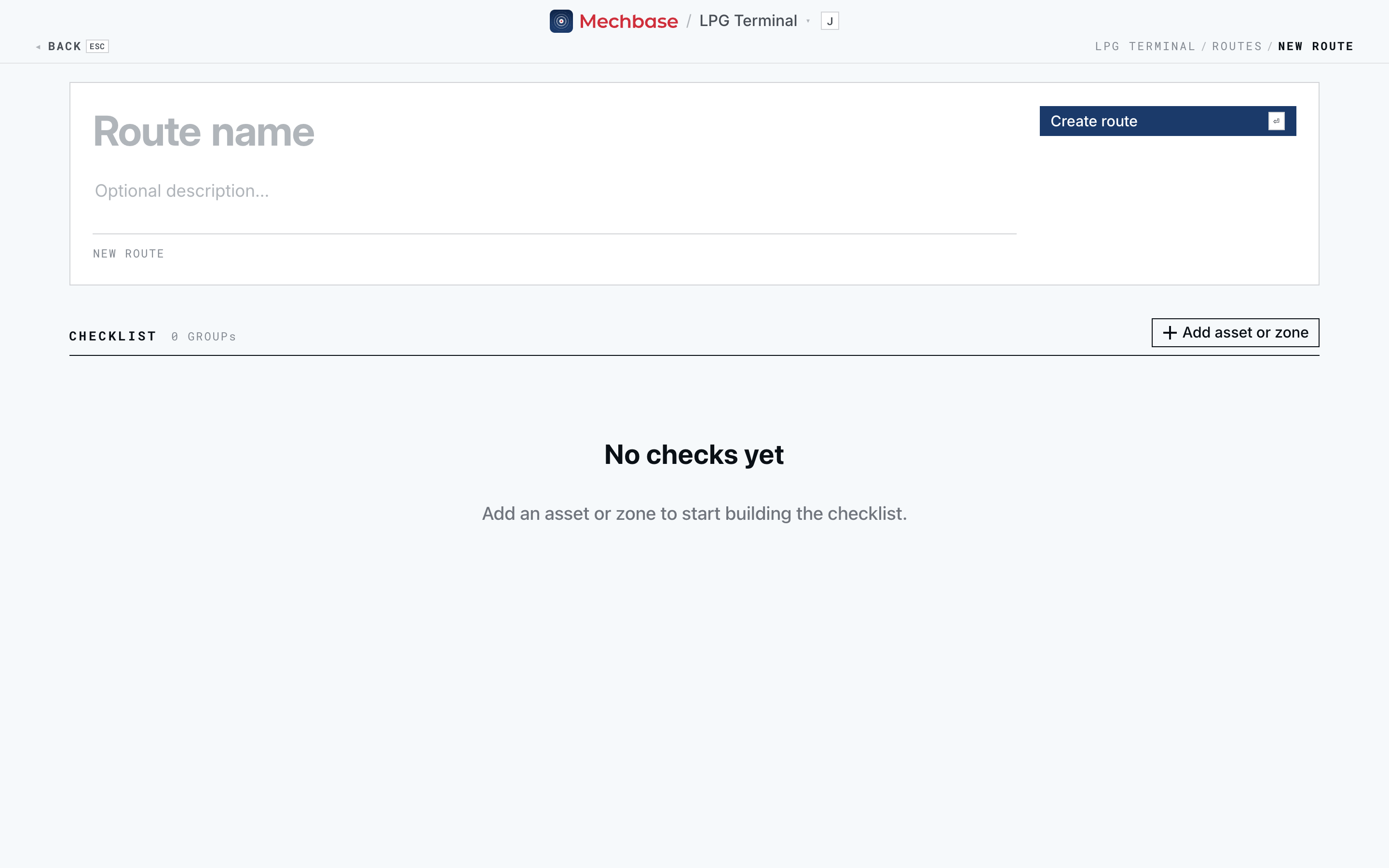
A new route starts empty. Build its checklist in the editor (Edit, E):
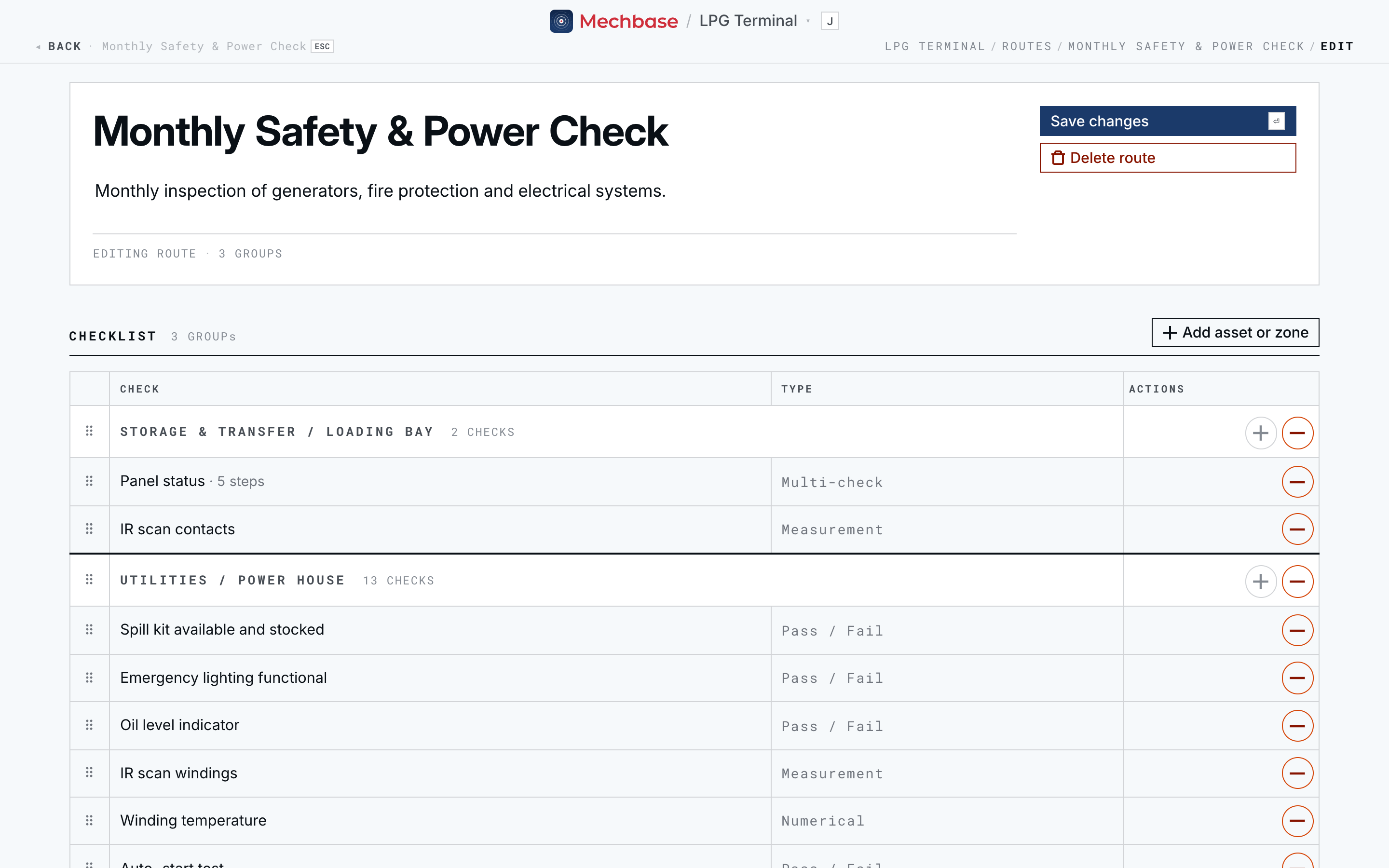
Click Add asset or zone and pick a stop from the list (type to filter). A stop can be a whole zone or a single asset.
On each stop, click + to Add check. Give it a Label, choose its Type, and then:
for a Measurement check, pick the Measurement point it reads;
for a Numerical check, set the Unit (mm/s, °C, bar…);
for a Multi-check, add each Step — every step becomes its own pass/fail tick during the run.
Drag the handles to reorder stops and checks so the route follows the natural walking path of the plant, or use Move to different zone or asset.
Click Save changes.
A check’s type is fixed once it’s created — changing it would break the history of past runs. Remove a check with –, or open it and use Delete check; deleting shows an Undo, and past runs keep their answers to it either way. Delete route removes the whole route after a confirmation.
Tip: Order the stops the way someone actually walks the site, and keep each check’s name short and unambiguous — it’s what the technician reads on their phone at 6 a.m. Put the how in the measurement point’s instructions, which appear on the check during the run.
Running a route#
Click Start route (R) — or Resume route if one is in progress — to open
the live run.
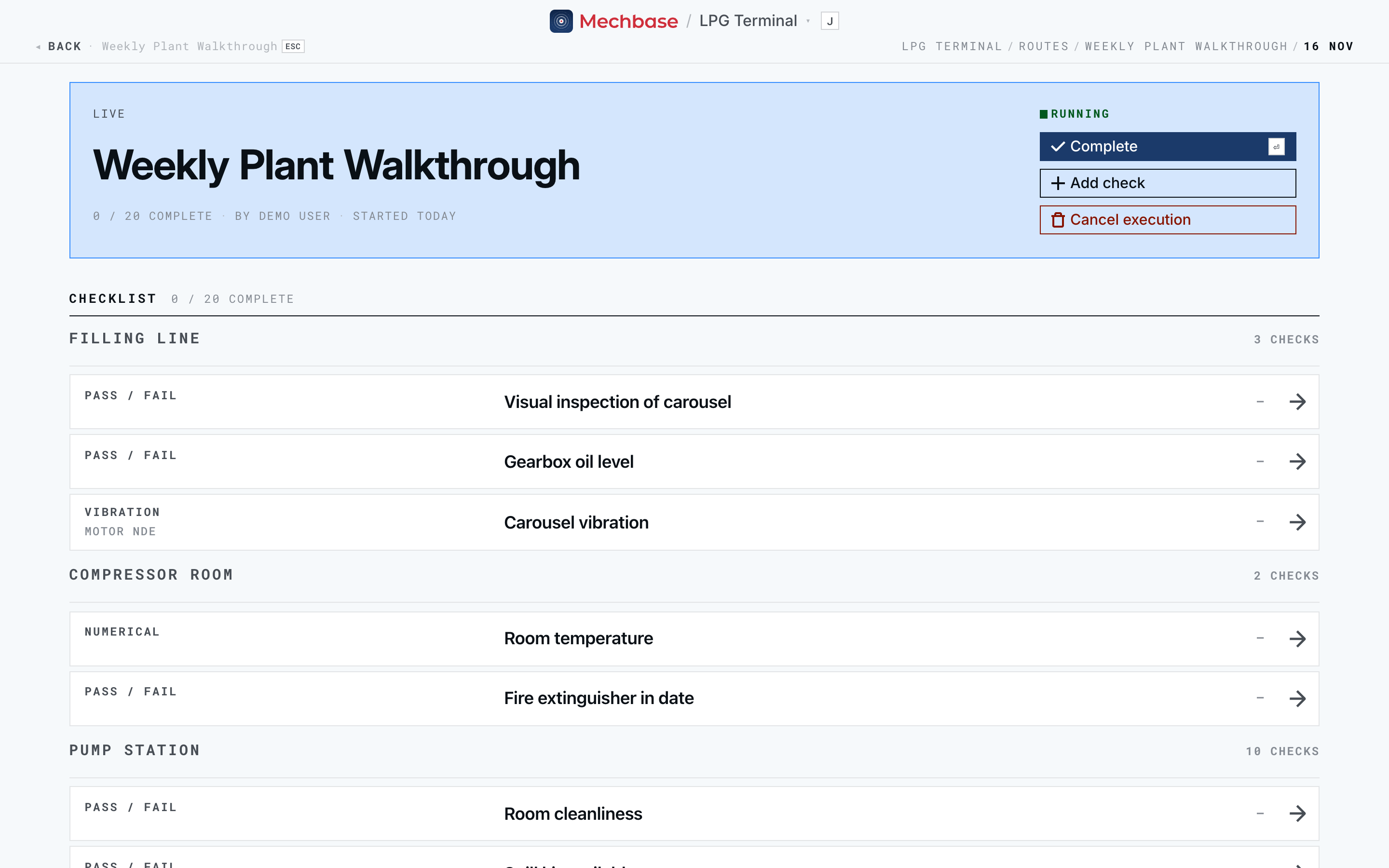
The header shows Live, the route, how many checks are complete, who’s running it, and when it started. Below is the checklist, grouped by stop, with each check’s type and current answer. Click a check to record it:
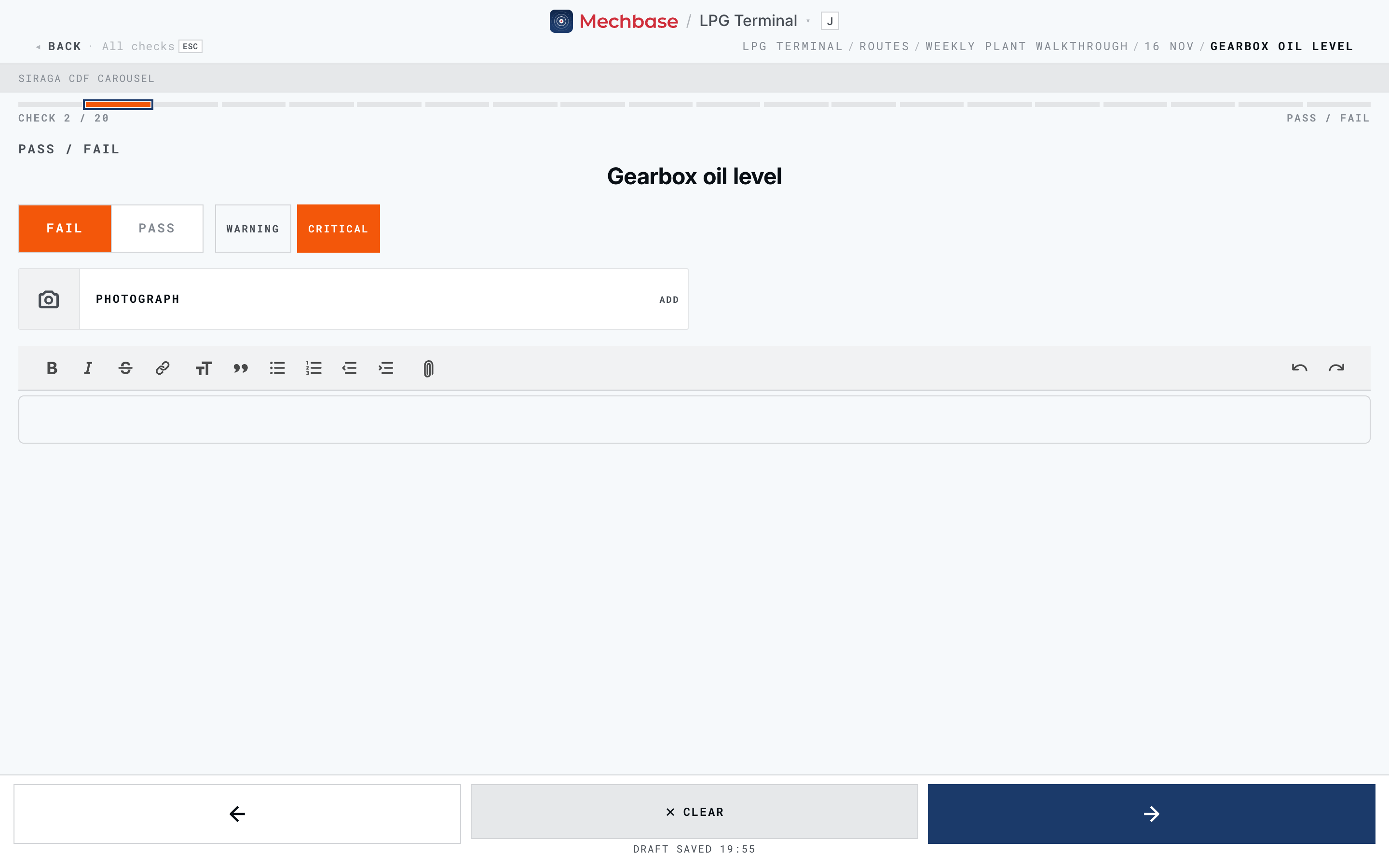
Each type shows the right input — here a Pass / Fail check. When you choose Fail, pick how serious it is: Warning or Critical (Critical is preselected). Multi-check steps are graded the same way, one by one. Every check also has room for evidence: Photograph to attach photos, and a notes field — your draft is saved as you type.
Use the arrows at the bottom to move to the previous or next check (on the last check, the arrow reads Finish route), and Clear to undo an entry. Back on the checklist:
Complete (
Enter) finishes the run and saves it as a report.Add check adds something you spotted that isn’t on the list: give it a Label and a Kind — Pass / Fail, Multi-check, or a reading such as Ultrasound / leak (dB), Temperature (°C), Vibration (mm/s) — and optionally a Zone (or No zone — triage later). Click Add to route; it’s added to the route for next time too.
Cancel execution abandons the run. Mechbase asks first, because every answer in it is discarded.
Note: A run doesn’t have to be finished in one go — leave it and Resume later, which is exactly what happens when a round spans a shift. Because a route only ever has one run in progress, colleagues picking up the same round all add to the same run. On the mobile app this also works offline; see Mechbase on your phone (iOS & Android).
Surveys: routes you build as you walk#
Sometimes there’s no route yet — a first walk-down of a new area, a leak survey, an audit. Click New Survey on the routes list, keep or change the suggested name (“Survey — 16 Nov 19:48”), and click Start survey. You go straight into a live run with an empty checklist, and add each check with Add check as you find it.
When you complete it, the survey becomes a normal route you can run again. If you cancel a survey before recording anything, it’s removed altogether.
Logging a non-conformity#
A non-conformity is simply a check that didn’t pass — a failed Pass/Fail item or step, or a reading that breached its limits. You don’t log it separately; it’s created the moment you record a failing result, with the severity you chose (Warning or Critical), and the photos and notes you add at that check become its evidence.
From there, a non-conformity travels with the asset, not just the inspection:
It’s pinned at the top of the affected asset’s Activity (Working with assets), and raises the asset’s state — a Critical non-conformity makes the asset Critical.
It appears on Needs attention, with the failed check as the trigger.
It’s cleared with Resolve on that asset, once the problem is dealt with, with an optional resolution comment.
This is the link between a person spotting a problem on a round and that problem being tracked to closure against the right asset. If your site is connected to a CMMS, non-conformities can also be pushed there as maintenance tasks automatically (Connecting Mechbase to other systems).
The inspection report#
Every completed run is saved as a report. Reach it with Latest report (L) or
History (H) on the route, or by clicking the inspection in the activity feed.
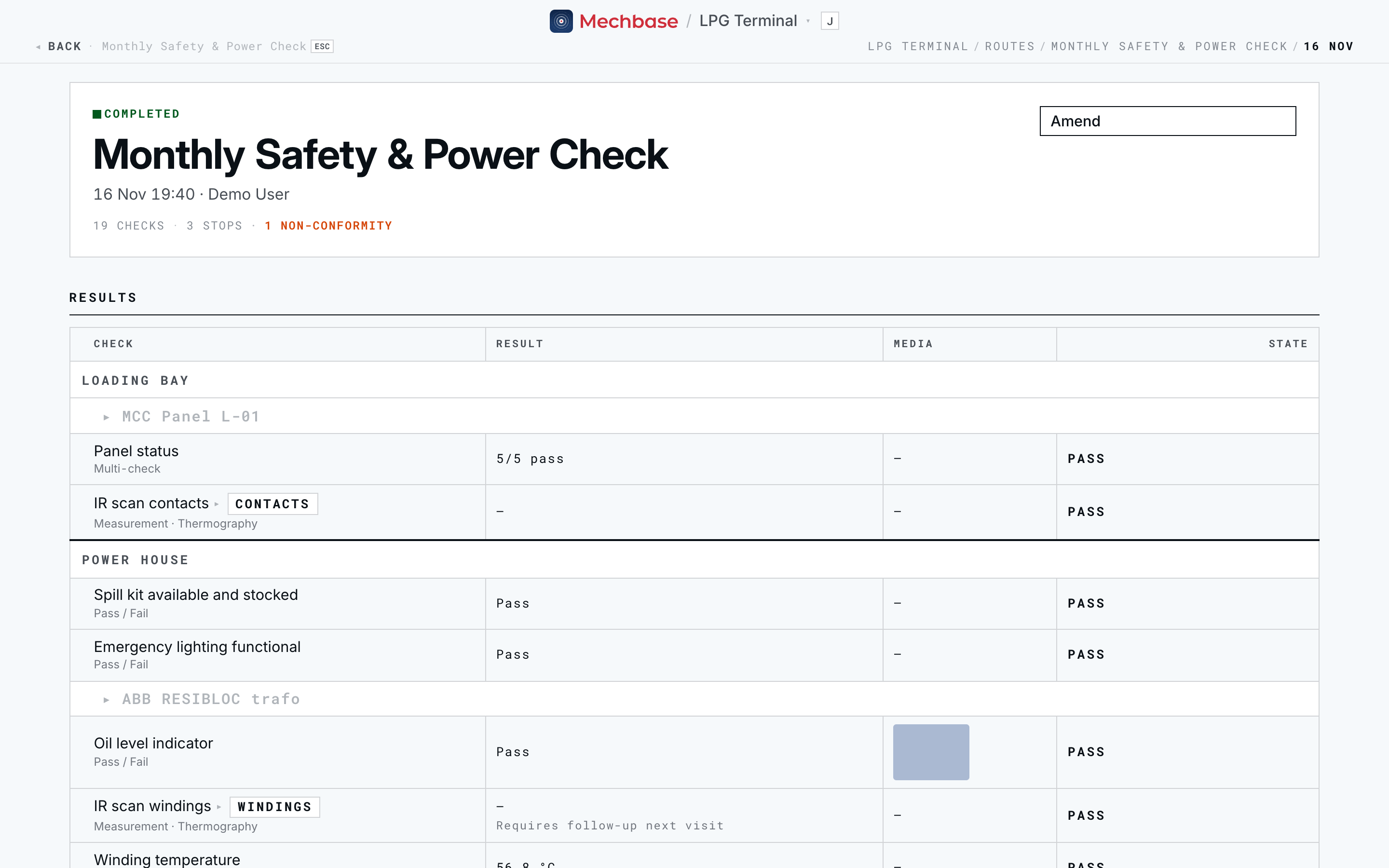
The report records who ran it and when, the totals (checks, stops, and the number of non-conformities), and a Results table with columns Check, Result, Media, and State. Checks are grouped by stop and then by asset — with a small topology diagram of the asset, its points coloured to match. The check’s type sits under its name, and any notes under its result. Only failed checks are coloured, so a director skimming the report sees the exceptions immediately.
The Result column shows what was actually recorded: Pass, a number with its unit, 5/5 pass for a multi-check, or for a measurement the reading itself (“Vel 2.1 mm/s · RMS … · Peak …”, “Temperature 45.5 °C”, “3 hotspots · ΔT …”).
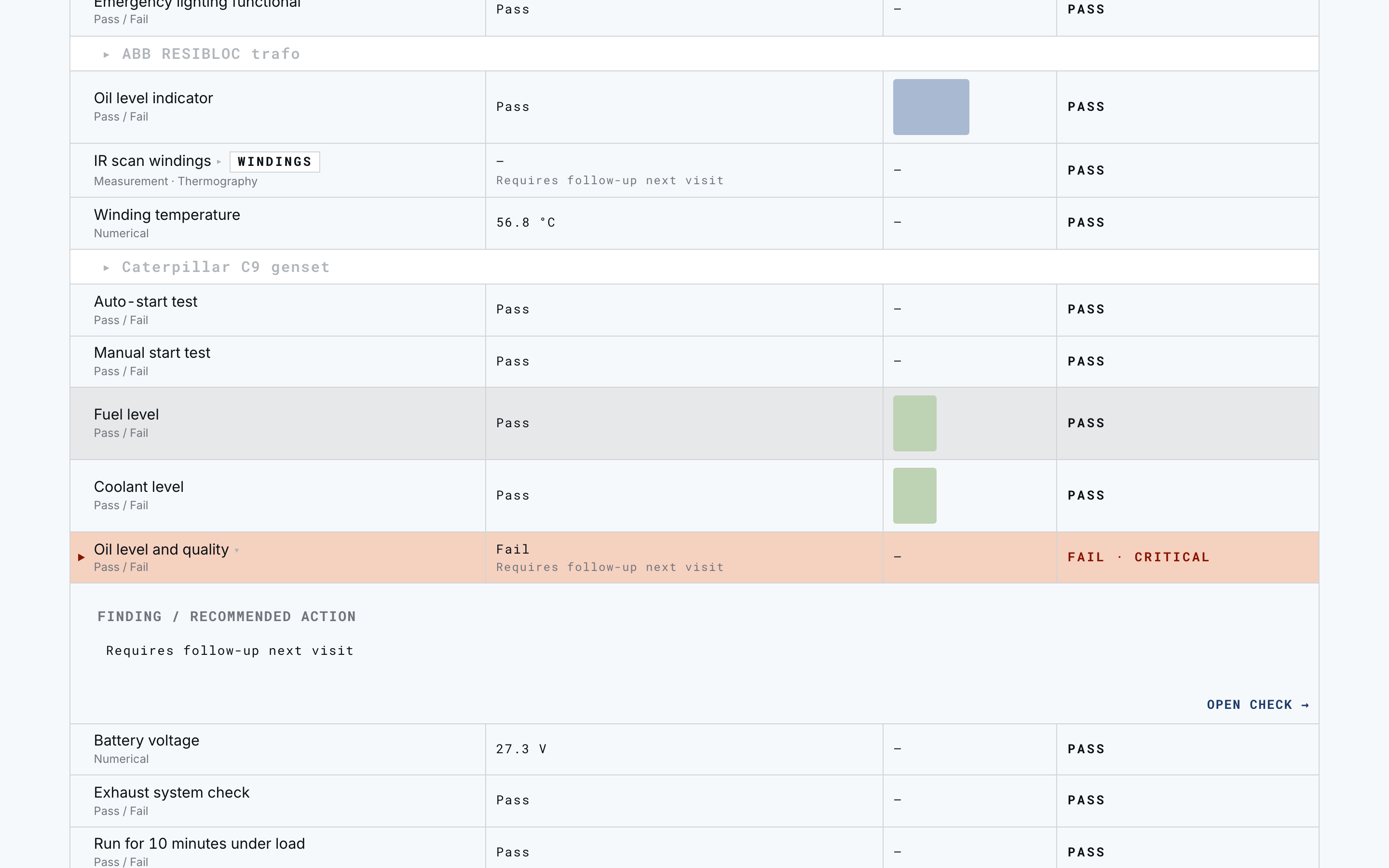
Open a row for the detail. Click a measurement or a failed check to expand it:
For a measurement: a trend of the point around the run, with its limits; the Previous, Current, and Trend change; for vibration, the full breakdown (Vel 10Hz/2Hz, RMS, Peak, O-P, P-P, CF, Kurtosis) and the waveform and spectrum.
Finding / Recommended action — what was found and what should happen next, editable right there on the report.
Open check → to go to the check itself.
The state words read Pass, Fail · Warning, or Fail · Critical for checks, and the reading’s state for measurements. Print the report from your browser and every row prints expanded, without the charts and controls — ready to hand over or file.
History and amending a run#
History (H) lists every run of the route as a card: Running or
Completed, when and by whom, the result (18/19), and the worst state found.
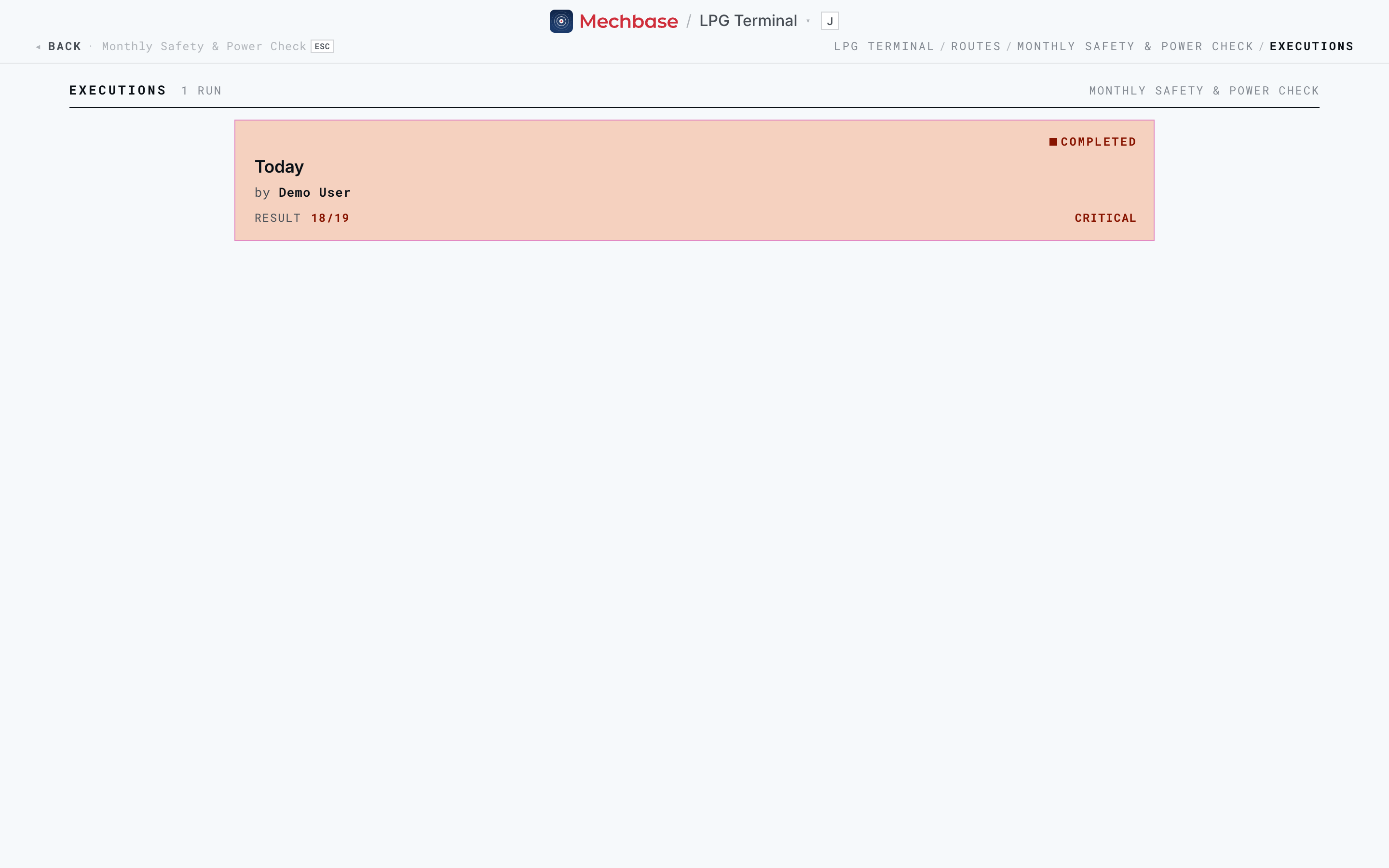
Cancelled runs that never recorded anything are left out. At the foot of a report, View earlier runs of … takes you here too.
Amending a run. Things get missed — a skipped check, a photo left on the phone, a reading taken after the run was closed. The technician who ran it (or a staff user) can click Amend on the report to:
answer checks that were skipped (they’re counted as Not answered);
record or replace a reading — the old one stays in the point’s history;
add or remove photos — removed photos are kept on the run, not deleted;
edit notes.
Recorded results themselves can’t be changed. Every amendment is logged with who did it and when, and the asset’s state is recalculated. Click Done to go back to the report.
A few words tie this together:
A run is Running while it’s in progress, Completed once finished, or Cancelled.
A route shows Running while it has a run in progress.
Between the automatic trends of Measurements, trends, and alarms and the human inspections here, Mechbase holds the complete maintenance record for every asset: what the sensors saw, what people found, and what’s still open.